How Do I Access Squore?
This chapter walks you through your first access to Squore and covers the web interface and some ways to customize it to your liking.
Logging into Squore
Your Squore installation runs on http://localhost:8180 by default. By accessing this page in your browser, you will be redirected to the Squore login page, as shown below:

Type in a username and a password and click Log in to log in.
Logging out of Squore
You can log out of Squore by clicking your username in the menu bar and selecting the Log out option.

Exploring the Home page
To begin using Squore, log in as the demo user with demo as username and password on the login page. Click the Log in button and wait for the Home page to open.

From the Home page, you can automatically return to the last projects or favourite artifacts that you had opened in the Explorer before logging out. A timeline of executed builds and news mechanism is available as well. You can also get links to the help and other features available for your account.
As the demo user, you are an advanced user of Squore and have access to the following functionality from the toolbar :
-
Explorer, where you can review your analysis results.
-
Projects, where you can launch new analyses and manage your projects.
-
Capitalisation, where aggregated statistical data can be found.
-
Models, under which you can examine all characteristics of your model and edit your dashboards.
-
Tools, which contains shortcuts to scripts that recreate demo projects. Note that only the demo user and members of the demo group have access to this menu by default.
-
<username>, where you can set your preferences and log out from Squore.
-
?, where user guides and application information can be found.
|
If you are looking for the administration tools, log in as an administrator of Squore using admin as the username and password. You will gain access to the Administration menu where you can configure access management and administer the server. |
Changing Squore look and feel
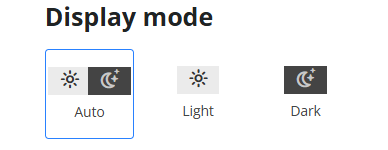
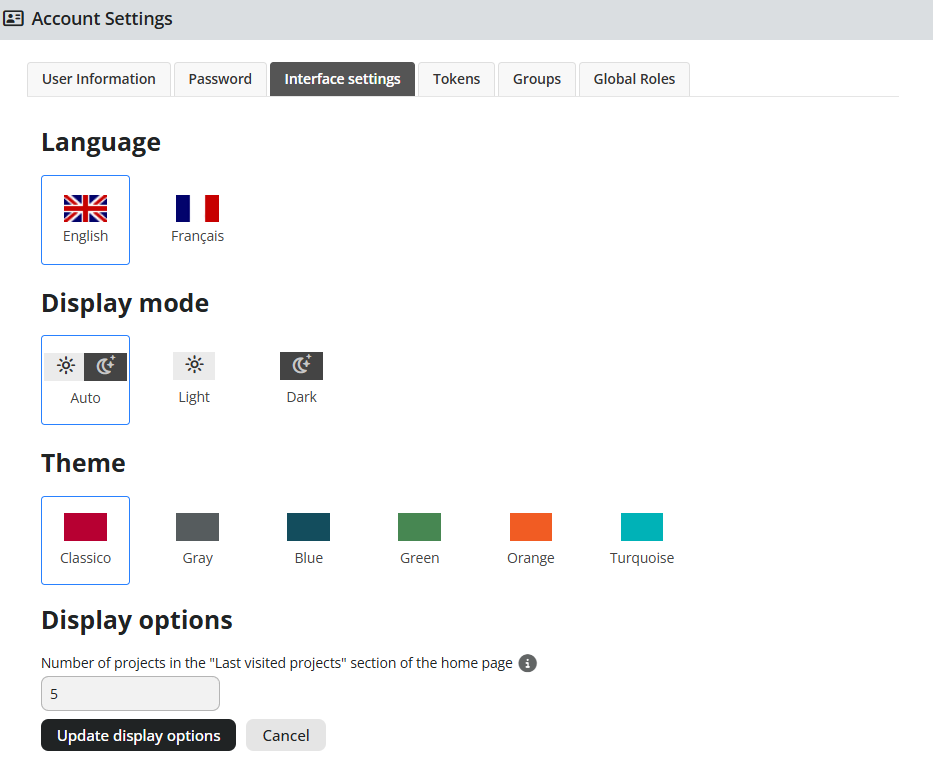
Whether you prefer to have a different interface color or dark mode enabled, Squore look and feel can be adapted to your liking.
These preferences can be accessed by clicking on your <username> on the right of the menu bar, and then Account Settings > Interface settings. All changes are automatically saved.
Using a different theme
You can select one of the six available color schemes to change the color of the interface. "Classico" theme is selected by default.